Canadian taxes are entered using the Tax Rate Calculation window and can be applied to one or multiple Line Items. You must have Taxable selected in the Tax Type field of your Line Items to apply taxes to them.
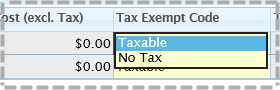
|
note |
Depending on your Buyer's configuration, the "Tax Amount" may be visible but not editable (read-only). |
To apply taxes to a Line Item:
- Click the Tax Details ("%") button in the Tax Amount field.

The Tax Rate Calculation window is displayed.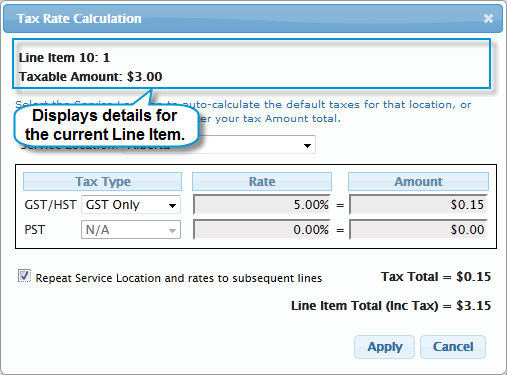
The top section of this window displays the details of the Line Item to which you are adding taxes. - Uncheck the “Repeat percentage Rate on subsequent lines” check box, as it is checked by default. This allows you to apply a rate to a single Line Items in the Tax Rate Calculation window.
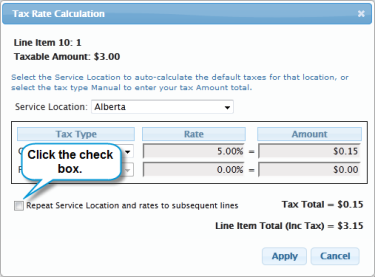
- In the Service Location drop down field, select a province.
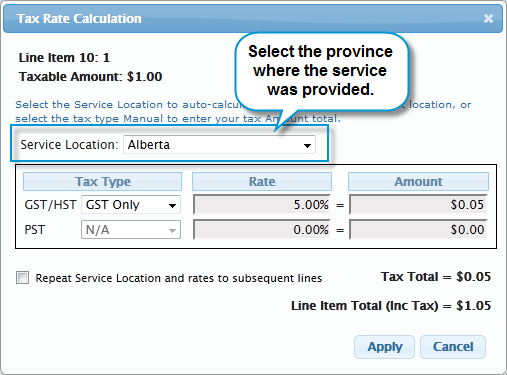
The Tax Type and Rate are automatically applied for the selected province. - Review the Tax Total. This section also displays the total for the current Line Item including taxes.
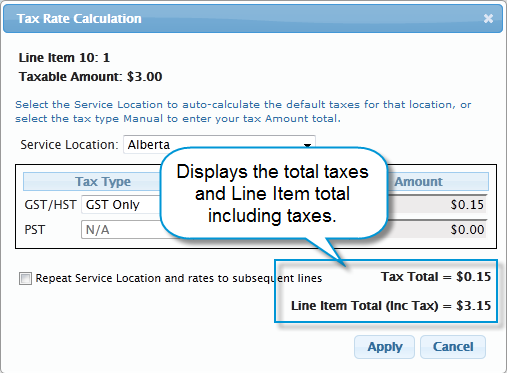
- Click Apply to apply the taxes to the Line Item and close the Tax Rate Calculation window.
The Tax Amount field displays the calculated taxes for the Line Item on the document form.
|
note |
You can view or edit the taxes applied to a Line Item by clicking on the Tax Details button in the Tax Amount field. |
To apply manual taxes or tax exemptions to a Line Item:
- Click the Tax Details button in the Tax Amount field.
The Tax Rate Calculation window is displayed. - Uncheck the “Repeat percentage Rate on subsequent lines” check box, as it is checked by default. This allows you to apply a rate to a single Line Items in the Tax Rate Calculation window.
- In the Service Location drop down field, select a province.
- Select either Manual or Exempt for the appropriate Tax Type (GST/HST or PST).
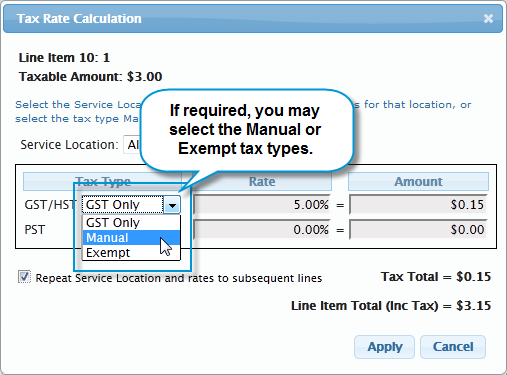
Select Manual to manually enter a tax Rate or Amount.
Select Exempt for items that are tax exempt. This option will not allow you to apply taxes to the item. - For the manual tax types you require, enter a tax Rate percentage or total tax Amount.
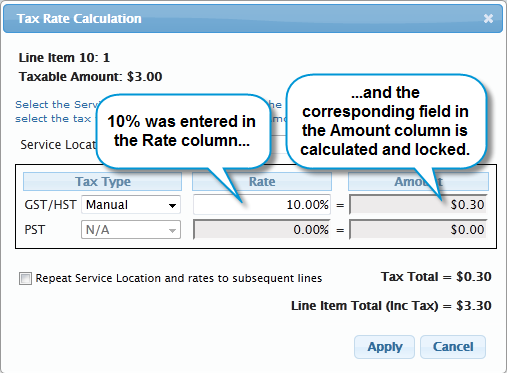
|
note |
When data is entered in a field, the corresponding field for that tax item is locked for editing. To enter data in a locked field, delete data entered in the corresponding field to unlock it. |
- Click Apply to apply the taxes to the Line Item and close the Tax Rate Calculation window.
The Tax Amount field displays the calculated taxes for the Line Item on the document form.
Repeating taxes to multiple Line Items
The “Repeat percentage Rate on subsequent lines” check box is checked by default, which allows you to apply rates to multiple Line Items in the Tax Rate Calculation window. The tax rates are applied to any subsequent, existing Line Items that have a Tax Type of Taxable and will automatically apply to new Line Items that you add.
To apply tax rates to multiple Line Items:
- Click the Tax Details button in the Tax Amount field for the first Line Item to which you would like to have the tax rate applied.

- In the Service Location drop down field, select a province.
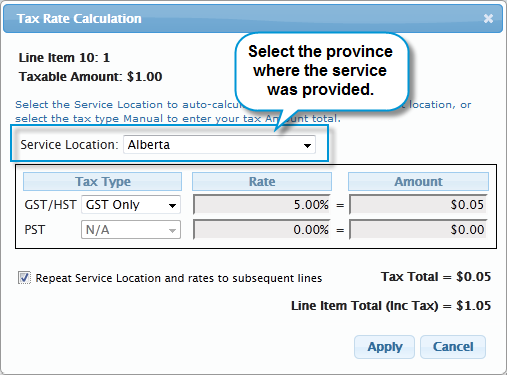
- If required, select either Exempt or Manual for the appropriate Tax Type (GST/HST or PST) and manually enter a Rate.
- Click Apply to apply the taxes to the subsequent Line Items and close the Tax Rate Calculation window.

|
note |
The tax rate will repeat to any subsequent, existing Line Items that have a Tax Type of Taxable and will automatically apply to new Line Items that you add. Only the percentage Rate from the Tax Rate Calculation window is repeated to subsequent Line Items, not a manually calculated dollar Amount. |